General Password Settings
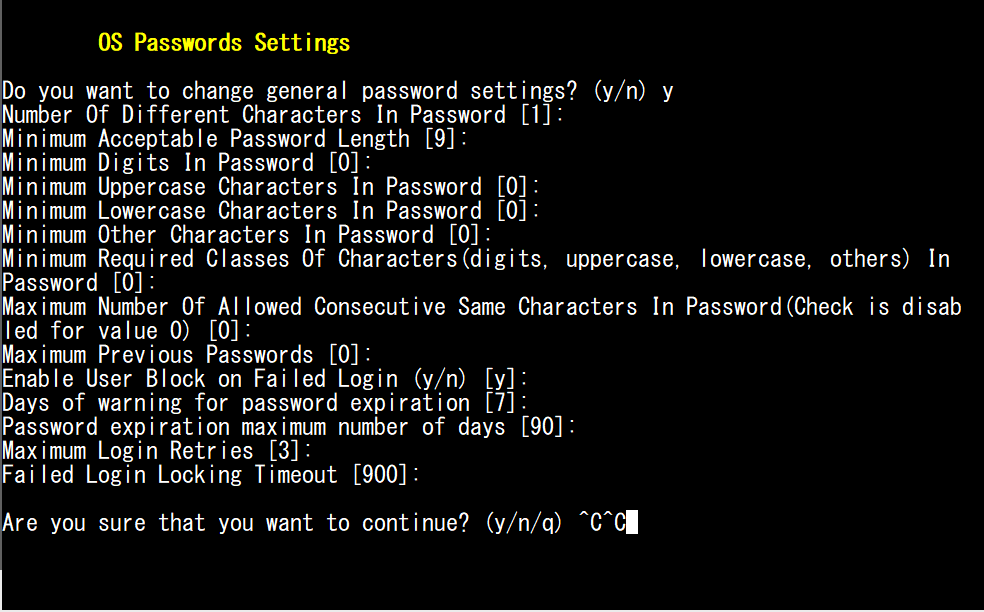
This option enables you to change the OS general password settings, such as 'Minimum Acceptable Password Length' and 'Enable User Block on Failed Login'. This feature also enables you to modify settings for a specific user, such as 'User’s Password' and 'Password Validity Max Period'.
|
➢
|
To modify general password settings: |
|
1.
|
The Change General Password Settings prompt is displayed; type y, and then press Enter. |
Do you want to change general password settings? (y/n) y
|
2.
|
Type the minimum number of characters in a new password that must be different from the old password (default-1), and then press Enter. |
Number Of Different Characters In Password [1]
|
3.
|
Type the minimum valid password length (default-10), and then press Enter. |
Minimum Acceptable Password Length [10]: 10
|
4.
|
Type the minimum number of digits to contain in the password (default-0), and then press Enter. |
Minimum Digits In Password [0]:
|
5.
|
Type the minimum number of uppercase characters to contain in the password (default-0), and then press Enter. |
Minimum Uppercase Characters In Password [0]:
|
6.
|
Type the minimum number of lowercase characters to contain in the password (default-0), and then press Enter. |
Minimum Lowercase Characters In Password [0]
|
7.
|
Type the minimum number of other characters (those characters not including numbers and letters) to contain in the password (default-0), and then press Enter. |
Minimum Other Characters In Password [0]:
|
8.
|
Type the minimum required number of character types to contain in the password, and then press Enter. For example ,if you wish the password to contain digits, uppercase, lowercase and other characters, then type 4 (default-0), and then press Enter. |
Minimum Required Classes Of Characters (digits, uppercase, lowercase, others) In Password [0]
|
9.
|
Type the maximum number of allowed consecutive same characters to contain in the password (default-0), and then press Enter. For example, "bb". If you do not configure this value, then no validation is performed. |
Maximum Number Of Allowed Consecutive Same Characters In Password (Check is disabled for value 0) [0]:
|
10.
|
Type the maximum number of previous passwords to reuse (default-0). |
Maximum Previous Passwords [0]:
|
11.
|
Type y to block the user from logging in as a result of log in failure, and then press Enter. |
Enable User Block on Failed Login (y/n) [y] y
|
12.
|
Type the number of days prior to the password expiration date to issue a warning (default-7 days), and then press Enter. |
Days of warning for password expiration [7]:
|
13.
|
Type the maximum number of days for password expiration time (default-90 days), and then press Enter. |
Password expiration maximum number of days [90]:
|
14.
|
Type the Maximum number of allowed log in attempts (default-3), and then press Enter. |
Maximum Login Retries [3]: 3
|
15.
|
Type the timeout for preventing logging in following a failed log in attempt (default-900 seconds), and then press Enter. |
Failed Login Locking Timeout [900]:900
|
16.
|
You are prompted if you wish to continue; type y, and then press Enter. |
Are you sure that you want to continue? (y/n/q) y